How does the enhanced llms.txt work?
Make sure AI crawlers can access your store, and point them to your most important pages with llms.txt.
Written By Tom van den Heuvel
Last updated 10 days ago
Two things live on one page: which AI crawlers can access your store, and your llms.txt file, a short directory that points AI to your most important products, collections, and pages.
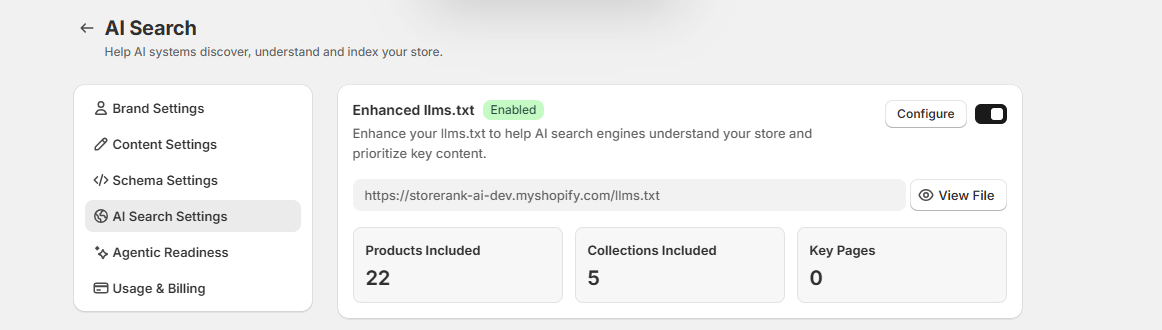
Set it up
Go to Settings → AI Search Settings.
Make sure Enhanced llms.txt is switched on. It's generated automatically using your Schema Settings and brand profile, and re-syncs whenever your products, collections, or business info change. You'll see how many products, collections, and key pages it includes.
Optional: click Configure to choose your priority products and priority collections. Pick best-sellers and flagship items with strong descriptions.
Optional: add key pages like shipping, returns, size guides, and FAQ. Enter just the page handle (e.g.
shipping).Save, then click View File to see the result.
Below llms.txt on the same page you'll find AI Search Indexing, which tells AI search engines right away when your content changes.
Crawler access
On the same page you'll see each major AI crawler and whether it can access your store: ChatGPT (GPTBot), Claude, Perplexity, Google Gemini, Common Crawl, Meta AI, Bing Copilot, and You.com. Other AI crawlers are allowed by default.
All should show Allowed. If one shows Blocked, that AI can't read your store. See AI Crawler Access shows as blocked.
Good to know: llms.txt is a helpful extra, not a ranking switch. Crawler access, schema, and good product content matter more. Set it once, update your priorities when you launch key products, and move on.
Was this helpful?
Still need help? Ask the team