How does the Schema Setup work?
What schema StoreRank adds to your store, how to set it up, and which types to turn on.
Written By Tom van den Heuvel
Last updated 10 days ago
Schema is invisible code that tells Google and AI platforms exactly what your store is: what you sell, prices, stock, reviews, where you ship, and how to contact you. Without it, AI has to guess. StoreRank adds and updates it automatically, on any theme.
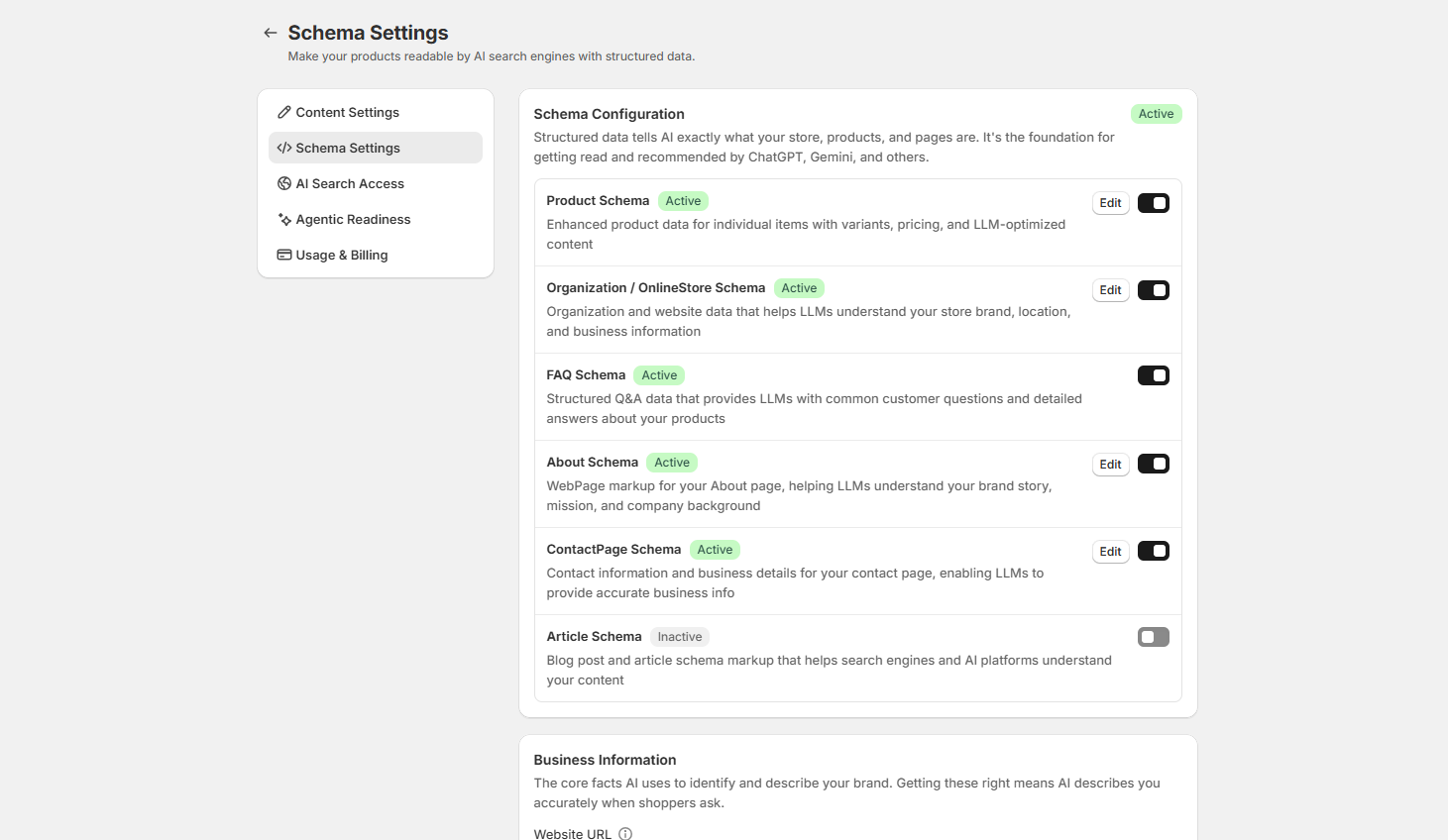
What StoreRank adds
Product (product pages): name, description, images, variants, price, currency, stock, brand, and ratings from your review app.
Organization / OnlineStore (your store): business name, description, logo, location, contact details, and social profiles.
FAQ (product pages): your published product FAQs.
About: your About page, so AI understands your brand story.
ContactPage: your contact page and business details.
Article (blog posts): headline, author, dates, image.
Product schema updates automatically when prices, stock, or reviews change.
How to set it up
Go to Settings → Schema Settings.
Under Schema Configuration, switch on the schema types you want (see below).
Fill in your Business Information: name, description, logo, support email, address, and the other business details.
Set your Shipping Regions. AI won't recommend you to countries you don't ship to.
Add your social profiles and external review sites. These are trust signals for AI.
Select your review app (Judge.me, Yotpo, Loox, Okendo, Stamped.io, or Reviews.io) so your ratings are included.
Click Save.
Which schema types should I turn on?
All of them, unless your theme or another app already adds the same type. Two of the same type on one page confuses Google. That happens most with Product schema, since many themes include it.
To check: run a product page through Google's Rich Results Test. If you see two Product entries, either turn off Product schema in StoreRank or remove it from your theme. Ours is more complete, so we recommend removing the theme's.
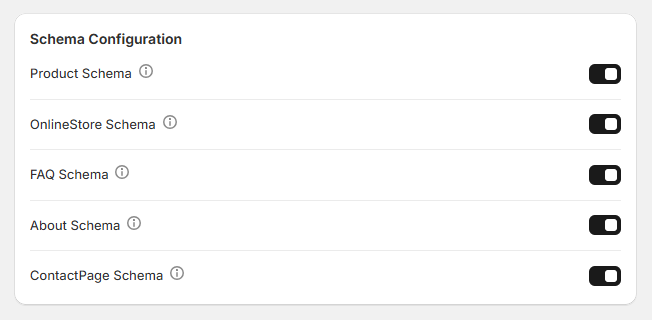
Each type has its own toggle under Schema Configuration.
Was this helpful?
Still need help? Ask the team