How to send your FAQs to Google Merchant Center
Add your StoreRank product FAQs to Google Merchant Center so Google can use them in AI Mode, Google Shopping and other conversational search experiences.
Written By Tom van den Heuvel
Last updated 10 days ago
Google Merchant Center has a Question and answer field (question_and_answer) that's built specifically for conversational search, like Google AI Mode. When a shopper asks Google something about a product, these Q&As give Google direct, product-specific answers to work with.
StoreRank can send the FAQs you've generated in the AI Product Optimizer straight into Merchant Center. You set it up once, and your FAQs stay in sync from then on.
Good to know: This only adds FAQs to products that are already in your Merchant Center. It doesn't add or remove products, and it doesn't change or replace your existing Google sync (for example the Google & YouTube app).
What you need
A Google Merchant Center account with your products already in it
Products with FAQs generated in the StoreRank AI Product Optimizer
Admin access to your Merchant Center account
Setup takes about 5 minutes.
Step 1: Copy your feed URL in StoreRank
In StoreRank, go to AI Product Optimizer → Settings.
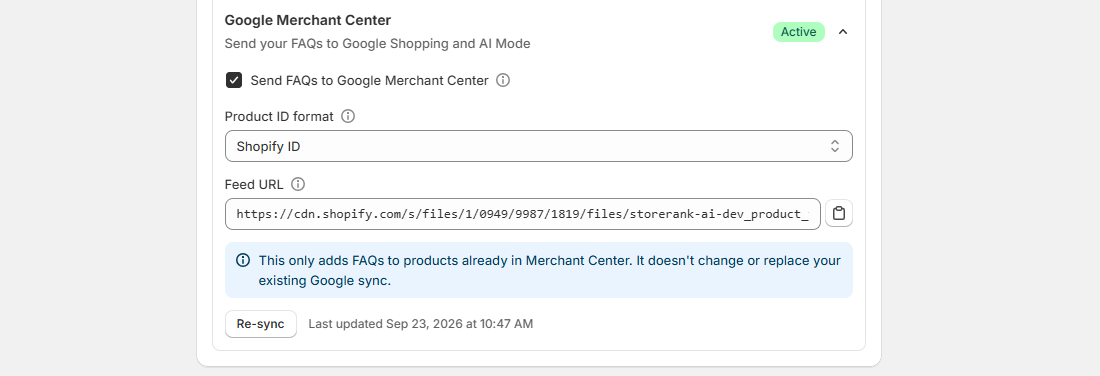
Open the Google Merchant Center section.
Check Send FAQs to Google Merchant Center.
Under Product ID format, choose the format that matches the product IDs in your Merchant Center (see the note below).
Click the copy icon next to Feed URL. You'll paste this into Merchant Center in step 3.
Which Product ID format should I pick? Merchant Center matches your FAQs to products by their ID, so the format has to match exactly. To check, open any product in Merchant Center under Products and look at its ID. If the IDs don't match, Google can't link the FAQs to your products.
Step 2: Turn on supplemental data sources in Merchant Center
Google adds extra product data like FAQs through a supplemental data source. This option is hidden by default, so you'll need to switch it on first. If you already use supplemental sources, you can skip this step.
Log in to Google Merchant Center and make sure you're in the right account.
Click the gear icon (Settings) in the top right and go to Add-ons.
Find Advanced data source management and click Add. Confirm by clicking Add again.
You'll now see Advanced data source management under Your add-ons.
Step 3: Add your StoreRank feed as a supplemental source
In Merchant Center, go to Settings → Data sources.
Open the Supplemental sources tab.
Click Add supplemental product data.
Choose Add product data from a file, then select Enter a link to your file.
Paste the Feed URL you copied from StoreRank.
Give the source a clear name, for example StoreRank FAQs.
Set the fetch schedule to daily, so new and updated FAQs keep flowing in automatically.
Select the primary data source that holds your products (usually your Shopify / Google & YouTube app source).
Click Create data source.
Tip: If you have more than one primary data source (for example one per country), link the StoreRank source to each of them.
Step 4: Check that it works
In Data sources → Supplemental sources, open your StoreRank source and click Update (or Fetch now) to process it right away.
Once processed, you'll see how many products were updated.
Open one of those products under Products to check that its FAQs are there.
Google can take some time to process new data, so don't worry if it doesn't show up immediately.
Keeping your FAQs up to date
StoreRank updates the feed when your FAQs change, and Merchant Center fetches it on the schedule you set in step 3. Want to push changes straight away? Click Re-sync in the Google Merchant Center section in StoreRank, then click Update on the source in Merchant Center.
Google allows up to 30 Q&As per product, with up to 1,000 characters per question and per answer. StoreRank formats your FAQs to fit these limits.
Troubleshooting
I don't see the Supplemental sources tab
The Advanced data source management add-on isn't active yet. Go back to step 2.
Merchant Center says "Fix your product file"
This usually means the feed doesn't contain any FAQs yet. Make sure you've generated and published FAQs for your products in the AI Product Optimizer, click Re-sync in StoreRank, and fetch the source again in Merchant Center.
The source was processed, but no products were updated
Your Product ID format probably doesn't match the IDs in Merchant Center. Compare a product ID in Merchant Center with the format selected in StoreRank, change it if needed, click Re-sync, and fetch again.
Some products don't get FAQs
FAQs are only added to products that are already in Merchant Center and have FAQs in StoreRank. Products that aren't in Merchant Center are skipped.
Still stuck? Reach out via the chat in the app and we'll help you get set up.
Was this helpful?
Still need help? Ask the team