Where do my AI Article Autopilot articles get published?
Written By Tom van den Heuvel
Last updated 1 day ago
When you generate articles with AI Article Autopilot, you might look at your storefront and not see them anywhere. That's expected, and this article explains where they actually go and how to make them visible to your visitors.
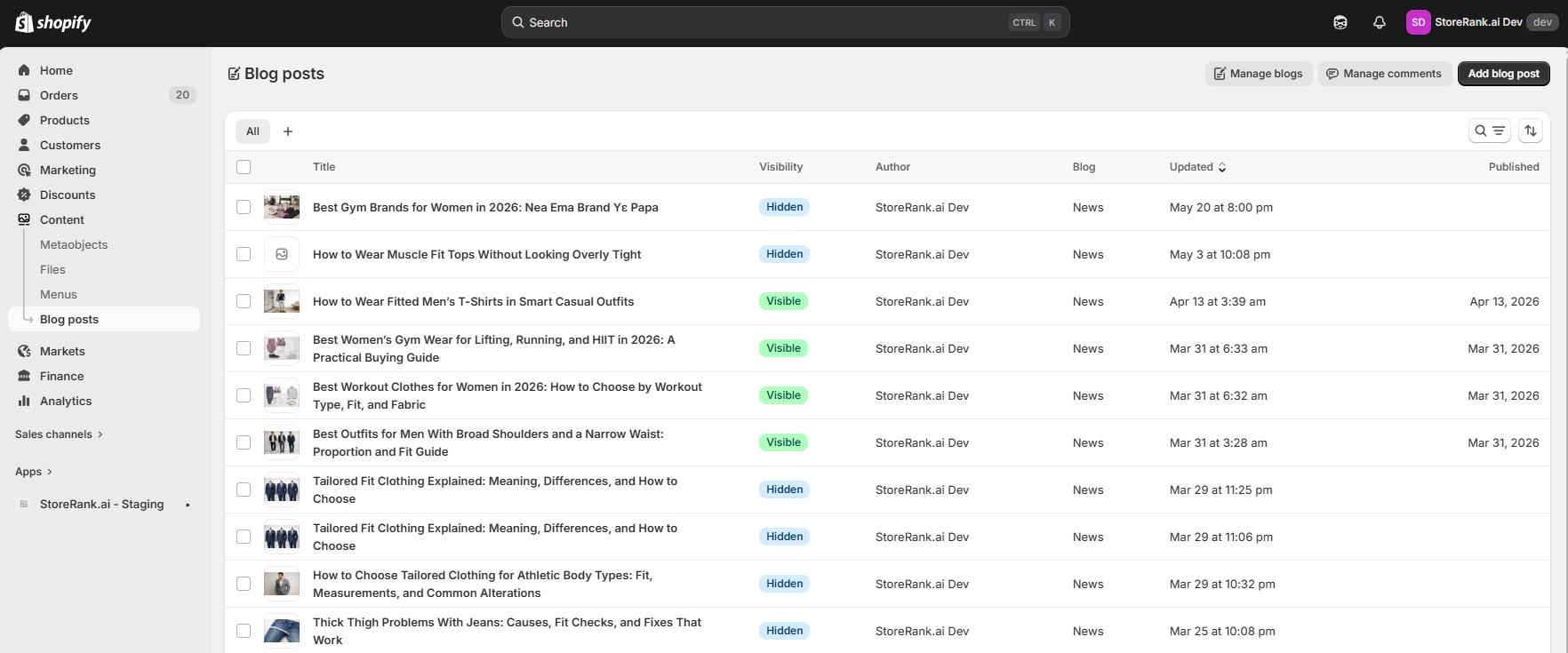
Your articles live in Shopify's native blog
StoreRank doesn't add a separate blog section to your theme. Instead, articles are published straight into Shopify's built-in blog system, so they sit alongside any other Shopify blog content you have.
You can find all of them here:
Shopify admin β Content β Articles

Draft vs. published: it depends on your Auto-Publish setting
How an article reaches that list depends on whether Auto-Publish is on or off in StoreRank.
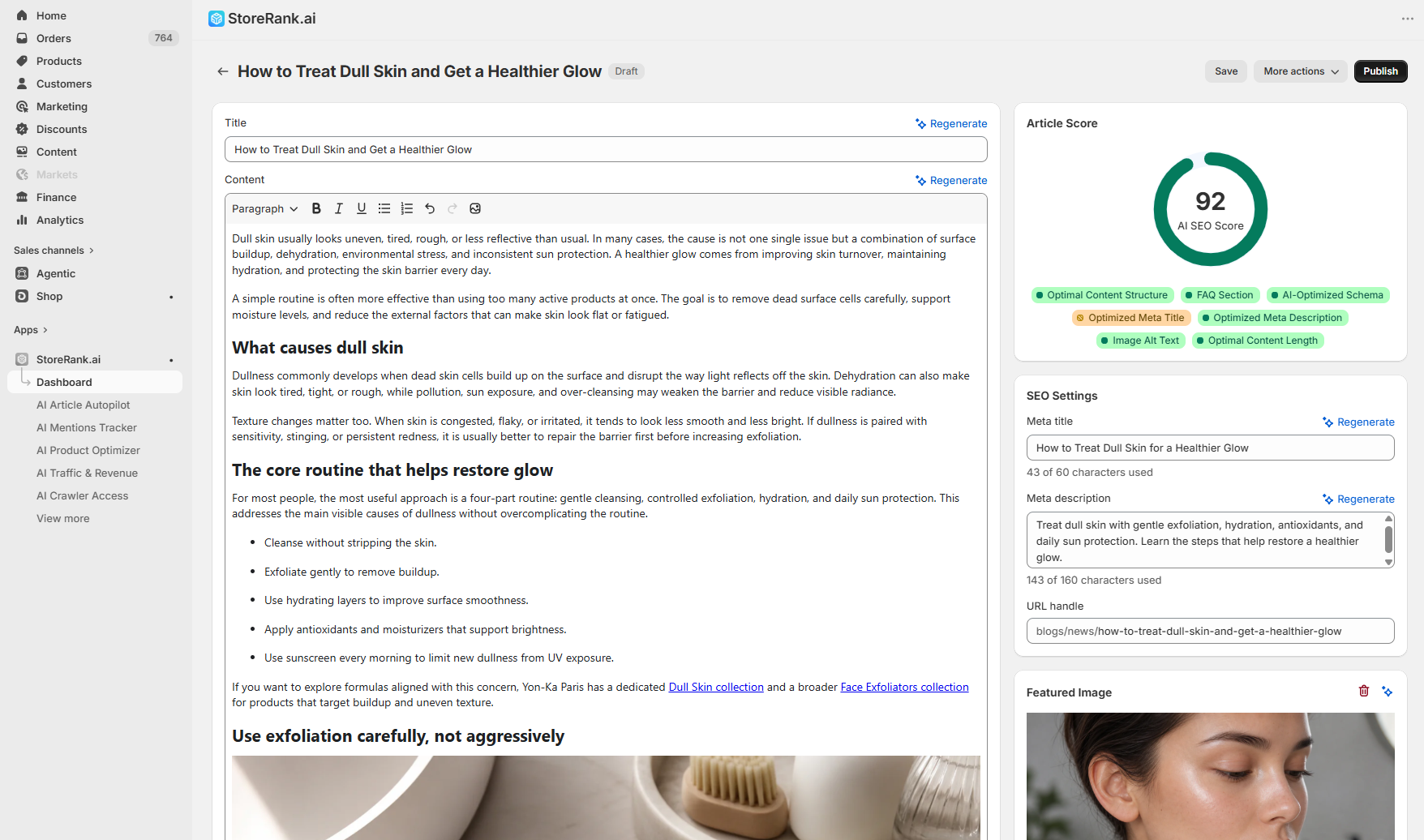
Auto-Publish OFF (the default): Articles are generated as drafts. To make one live, open the AI Article Autopilot page in StoreRank, find the generated article, and click publish. It then moves into the Shopify Articles list above.

Auto-Publish ON: Articles go live automatically as soon as they're generated. No manual step needed.
You can switch this setting on the AI Article Autopilot page or in Content Settings.
Don't see a "Blog" link on your store yet?
Here's the part that trips most people up: Shopify creates and publishes the blog posts, but it does not automatically add a "Blog" link to your store's navigation. So the articles are live and fully crawlable by AI and search engines, but human visitors won't find them until you add a link yourself.
This is a Shopify setting, not something StoreRank controls.
Step 1: Confirm your blog is active
First, make sure you have an active blog in Shopify:
Shopify admin β Content β Blogs

Click into one of your active blogs, or create a new one by clicking βAdd Blogβ. This is the blog you'll link to in the next step.
Step 2: Add the blog to your navigation
In Shopify admin, go to Content β Menus
Pick your Footer menu (or Main menu if you'd rather it sit in the header)
Click Add menu item, name it something like "Blog," and in the link field select your blog
Click Save
That's it. Your blog is now browsable from your storefront footer or header. The whole thing takes about a minute.
Quick recap
Your articles are always saved to Shopify's native blog at Content β Articles. If Auto-Publish is off, publish them from the Autopilot page first. To let visitors browse them, add a blog link to your navigation under Content β Menus. AI crawlers and search engines can already find your articles whether or not the link exists.